Whop
Connect Whop to Faurya with a Company API Key, webhook automation, and checkout metadata for revenue attribution.
Attribute revenue with Whop
Use this guide to connect Whop payment webhooks to Faurya. Faurya can create the Whop webhook for you after you provide a Whop Company API Key and Company ID.
The setup has two parts:
- Create a Whop Company API Key with webhook management access.
- Connect Whop in Faurya and pass Faurya attribution IDs in your checkout metadata.
After Whop sends verified payment webhooks to Faurya, successful payments can be attributed back to the visitor and session that started checkout.
Use credentials from the same Whop environment where you test payments. Use sandbox keys for sandbox checkout and production keys for production checkout.
What Faurya needs from Whop
Faurya needs:
- Whop Company API Key
- Whop Company ID
Faurya uses these to create and manage the Whop webhook URL automatically.
Required Whop API key access
Create a Company API Key in Whop for the company you want to connect.
The key must be allowed to manage webhooks. At minimum, use:
developer:manage_webhook
If Whop lets you choose a role instead of individual scopes, choose Admin for the easiest setup.
If Faurya says it cannot create the webhook, the API key usually does not have webhook management permission or it belongs to a different Whop company.
Step 1: Open the Whop tab in Faurya
In Faurya, open your site settings and go to Revenue. Select Whop.
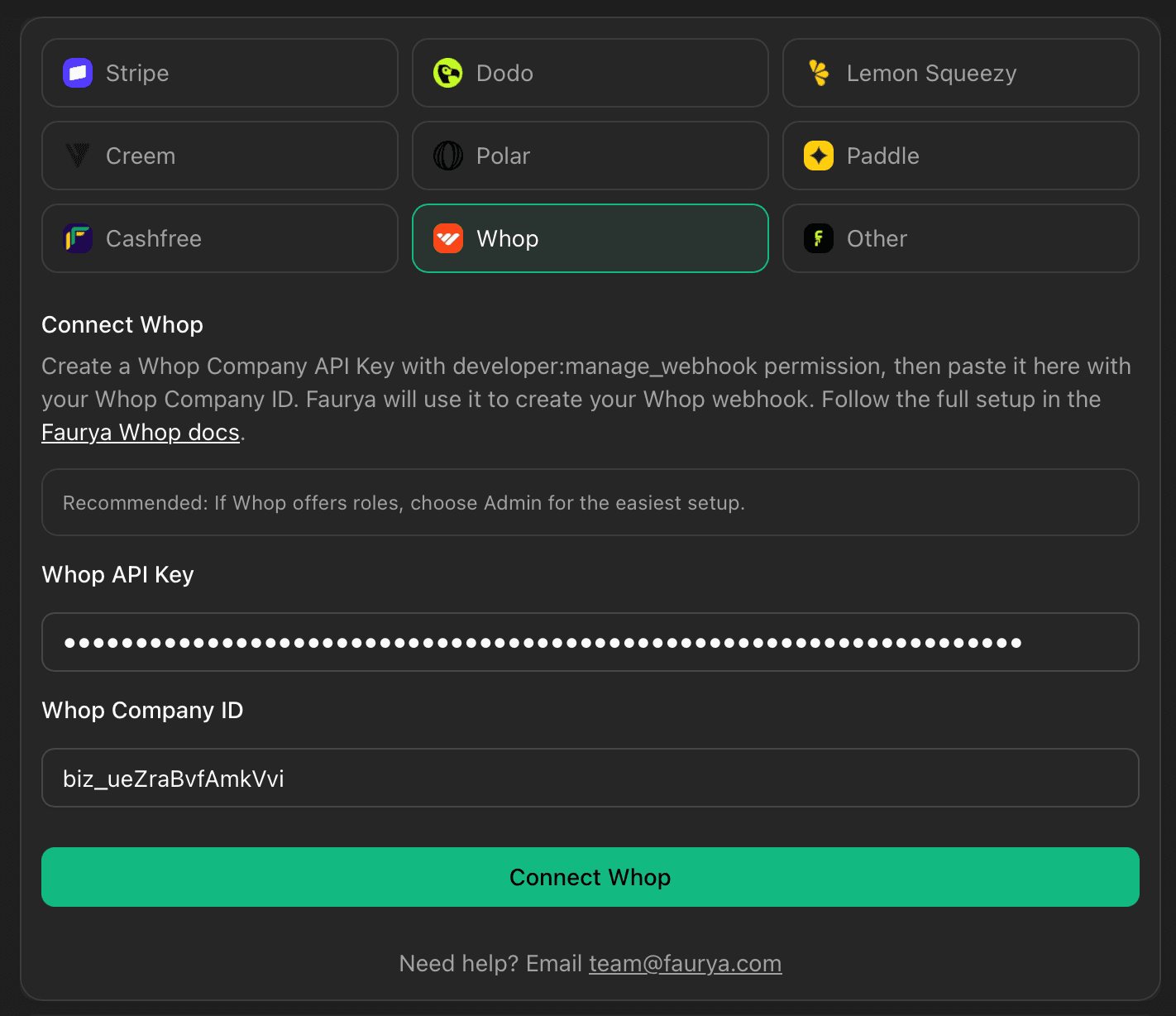
Step 2: Enter your Whop API key and Company ID
Paste:
Whop API KeyWhop Company ID
Then click Connect Whop.
Faurya will create a Whop webhook for your site and store the API key encrypted.
Step 3: Confirm Whop is connected
After Whop is connected, Faurya shows a masked API key and a remove button.
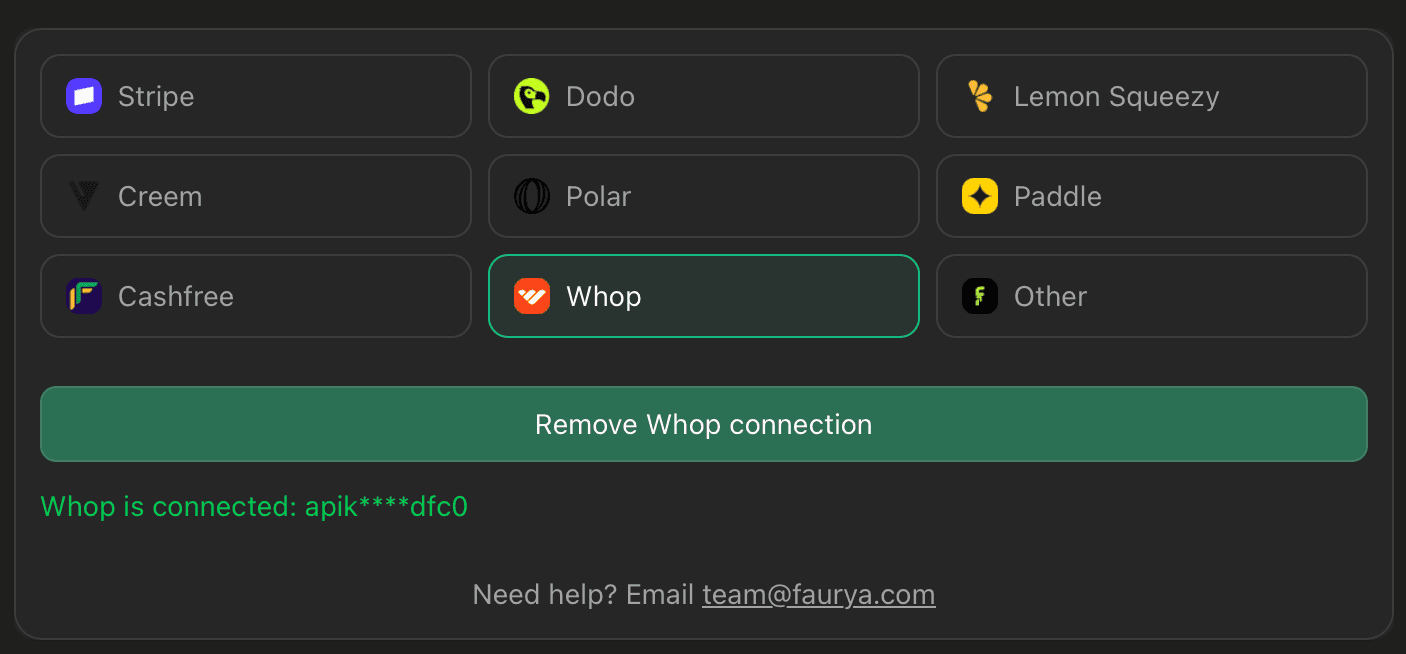
If you disconnect Whop, Faurya first deletes the webhook in Whop, then clears the local connection.
Pass Faurya attribution IDs to Whop checkout
To attribute revenue correctly, pass Faurya’s attribution IDs into Whop checkout metadata when creating a checkout configuration or plan.
Read these values from cookies:
faurya_visitor_idfaurya_session_id
Example with a Next.js route that creates a Whop checkout configuration:
import { cookies } from "next/headers";

export async function POST() {
  const cookieStore = await cookies();
  const fauryaVisitorId = cookieStore.get("faurya_visitor_id")?.value;
  const fauryaSessionId = cookieStore.get("faurya_session_id")?.value;

  const metadata = {
    faurya_visitor_id: fauryaVisitorId,
    faurya_session_id: fauryaSessionId,
  };

  const response = await fetch(
    "https://api.whop.com/api/v1/checkout_configurations",
    {
      method: "POST",
      headers: {
        Authorization: `Bearer ${process.env.WHOP_API_KEY}`,
        "Api-Version-Date": "2026-07-01",
        "Content-Type": "application/json",
      },
      body: JSON.stringify({
        company_id: process.env.WHOP_COMPANY_ID,
        mode: "payment",
        currency: "usd",
        redirect_url: "https://your-site.com/checkout/success",
        metadata,
        plan: {
          product_id: process.env.WHOP_PRODUCT_ID,
          initial_price: 10,
          currency: "usd",
          plan_type: "one_time",
          metadata,
        },
      }),
    },
  );

  return Response.json(await response.json());
}
If you use Whop checkout links or plans instead of checkout configurations,
attach the same faurya_visitor_id and faurya_session_id values to the plan
or payment metadata supported by your Whop flow.
Sandbox notes
For sandbox testing, use Whop’s sandbox API host and sandbox dashboard data:
https://sandbox-api.whop.com/api/v1Make sure the following all belong to the same sandbox company:
- Company API Key
- Company ID
- Product ID / access pass ID
- Webhook configuration
If Whop returns You are not authorized, the API key may belong to the company but still lack checkout configuration or plan creation permissions. Use a sandbox Admin key or create a key with the needed checkout and webhook permissions.
How Whop attribution works
When Whop sends a webhook to Faurya:
- Faurya verifies the Whop webhook signature.
- Faurya stores the verified raw webhook payload for debugging.
- Faurya deduplicates repeated Whop webhook deliveries.
- Faurya reads the payment metadata.
- Faurya connects the payment to the original
faurya_visitor_idandfaurya_session_idwhen those values are present.
Troubleshooting
Faurya cannot connect Whop
- Confirm the API key belongs to the same Whop company as the Company ID.
- Confirm the key has
developer:manage_webhookpermission. - If custom scopes still fail, use an Admin Company API Key.
Checkout creation returns “You are not authorized”
- Confirm the key has checkout configuration or plan creation access.
- Confirm your Product ID belongs to the same company.
- In sandbox, use
https://sandbox-api.whop.com/api/v1and sandbox dashboard IDs.
Revenue appears but is unattributed
- Confirm you pass
faurya_visitor_idandfaurya_session_idinto Whop checkout metadata. - Confirm those values are present in the Whop payment webhook payload.
Duplicate revenue appears
Faurya deduplicates Whop webhooks by webhook ID and payment identifiers. Avoid also recording the same Whop payment through a separate manual API call.