Connect payment providers
See your business revenue on top of your analytics by connecting Stripe, LemonSqueezy, Polar, Shopify, and more.
Connect your payment provider
After connecting your payment provider (Stripe, LemonSqueezy, Polar, Shopify, etc.), you'll see your business revenue on top of your web analytics. It's a prerequisite for revenue attribution.
Shopify users: See the Shopify installation guide. The Shopify integration automatically tracks visitors, revenue, and revenue attribution—no manual script installation needed.
Get started
- In your Faurya dashboard, select your website, and go to your Site Settings
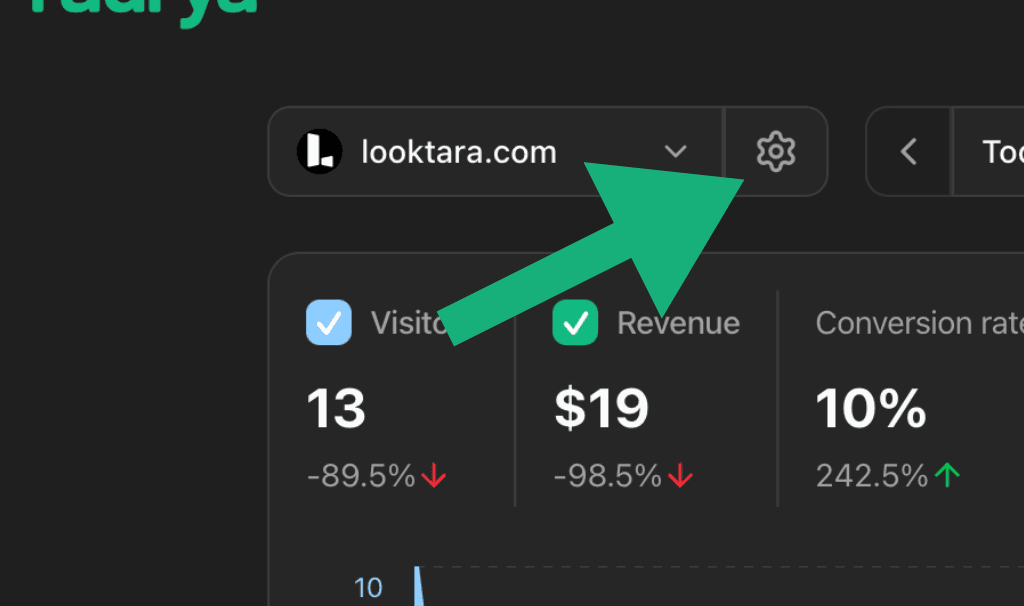
- Select the Revenue tab and pick your payment provider. If you have multiple payment providers, you can connect them all.
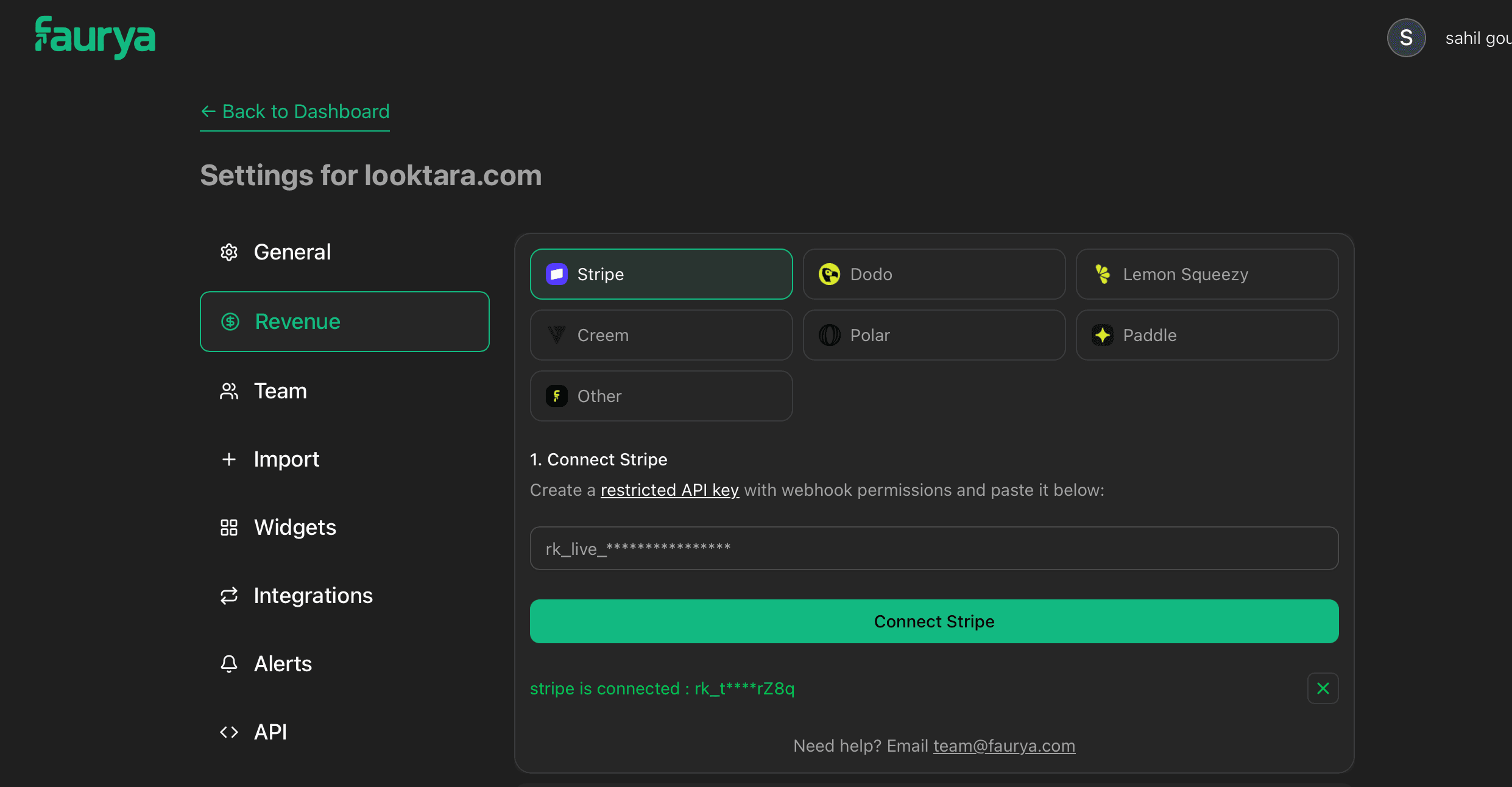
- Follow the instructions to connect your payment provider. When you're done, Faurya will fetch your revenue data and you'll see it on top of your analytics.
Need help connecting your payment provider? Email us at team@faurya.com
API key permissions by provider
Faurya uses your key to set up the webhook for new payments and to import your existing billing history. A key missing a permission may still connect, then fail part-way through the import, so give it everything listed for your provider. Use a key from the same mode (test or live) as the payments you want to see.
Stripe
Use the restricted API key link in the Stripe tab: it opens Stripe with every permission below already ticked. An unrestricted secret key (sk_…) also works.
- Read: Accounts, Customers, Products, Prices, Coupons, Subscriptions, Invoices, Charges and Refunds, Disputes, Balance Transaction Sources, Payment Intents, Checkout Sessions
- Write: Webhook Endpoints
Dodo Payments
Create a key under Developer → API Keys, in the same mode as your payments. Dodo sets access per resource — None, Read or Write — and Write includes Read, so tick:
- Read: Payments, Refunds, Disputes, Subscriptions, Products, Customers, Balances
- Write: Webhooks
Balances is where Dodo's own fees and settlement live; without it your revenue is gross, not net. Webhooks must be Write because Faurya creates the endpoint, reads its signing secret, and removes it when you disconnect.
Older Dodo keys predate per-resource access. If your key only offers an Enable write access checkbox, tick it — a read-only key of that kind cannot create the webhook.
Lemon Squeezy
Create a key under Settings → API, in the same mode as your payments. Lemon Squeezy publishes no permission or scope settings — one key has full access to your account and every store on it, so there is nothing to tick. Make sure the Store ID you enter in Faurya is a store that key can see.
Faurya uses it to read stores, orders, subscriptions, customers, products, variants and prices, and to create and remove the webhook.
Creem
Creem is the one provider whose webhook you create yourself — the Creem tab gives you the URL and the events to subscribe to. Do that first, then create an API key under Developers → API Keys in the same mode with Full access.
Faurya lists your webhooks and reads the store id off the one pointing at Faurya; that is how it confirms which Creem store the key belongs to. With the same key it reads transactions, customers, subscriptions, products and customer credits.
Creem publishes no list of restricted-key permissions, so Faurya cannot tell
you which boxes a restricted key needs. If Creem answers 403, use a Full
access key.
Polar
Create an organization access token in your organization settings with these scopes:
organizations:read,customers:read,products:read,discounts:read,subscriptions:read,orders:read,payments:read,refunds:read,events:read,checkouts:readwebhooks:write
Paddle
Create a key under Developer Tools → Authentication → API keys with these permissions, then enter your Seller ID:
- Read:
customer.read,address.read,product.read,price.read,subscription.read,transaction.read,adjustment.read - Write:
notification_setting.write
Whop
Create a Company API Key. The Admin role covers everything. With custom permissions, the key needs:
developer:manage_webhook,payment:basic:read,member:basic:read,member:email:read,plan:basic:read,company:balance:read
See the Whop guide for details.
If Faurya asks you to reconnect
Faurya stores which provider account a connection belongs to, and every imported row is keyed by it. A connection made before that check existed — or one whose saved key Faurya can no longer read — cannot be imported from, because the rows would be filed under an account nothing confirmed.
When that happens the Revenue tab says so on the import card, and the fix is always the same:
- Open Site Settings → Revenue and pick the provider.
- Click the × on the connection to disconnect it.
- Connect it again with a key carrying the permissions listed above.
- Start the import.
Nothing already imported is lost, and reconnecting does not re-charge or re-deliver anything in your payment provider.
Next step
- Attribute revenue to find your best marketing channels