Get Started
Connect Google Search Console
Connect Google Search Console to see which search terms drive traffic to your website and identify SEO opportunities.
Connect Google Search Console with Faurya
Connect Google Search Console to see which search terms drive traffic to your website and identify SEO opportunities with Faurya.
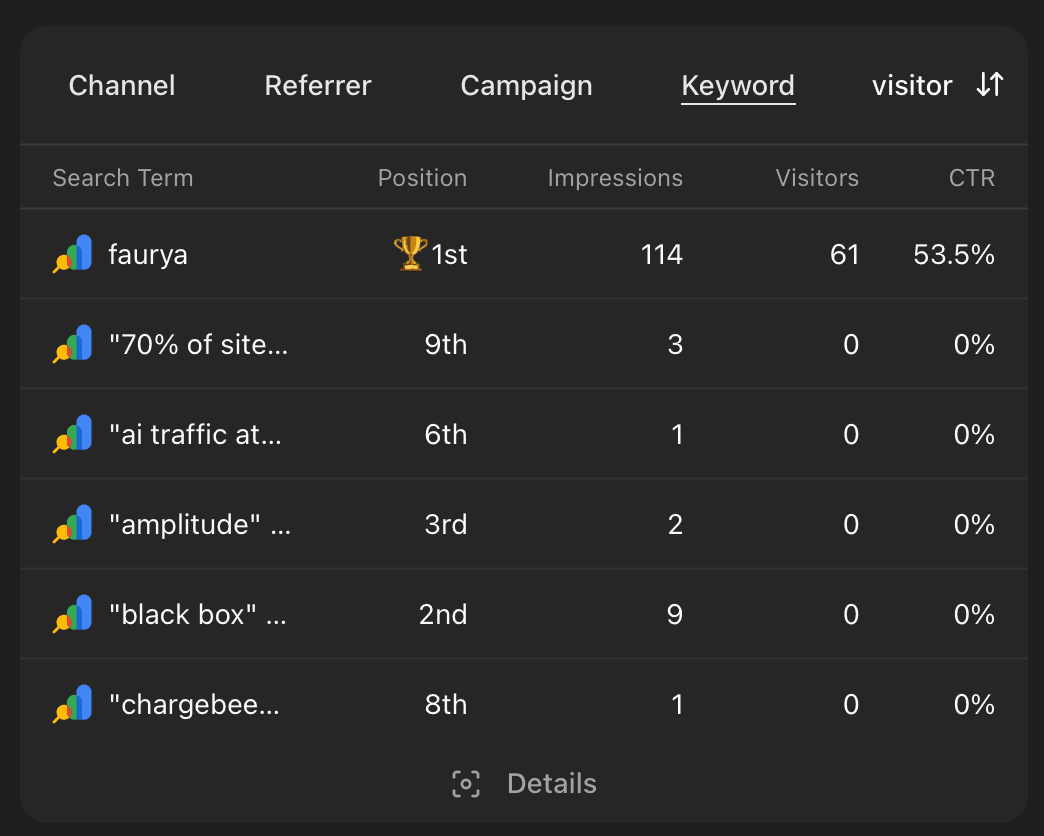
When you filter your analytics by path (e.g. /blog), Faurya will only show the keywords that brought traffic for that path, so you can see which keywords are driving revenue to your business.
And if you're curious, you can click Details to see the full list of keywords, impressions, clicks, CTR, and revenue estimates.
Get started
- In your Faurya dashboard, select your website and go to Settings
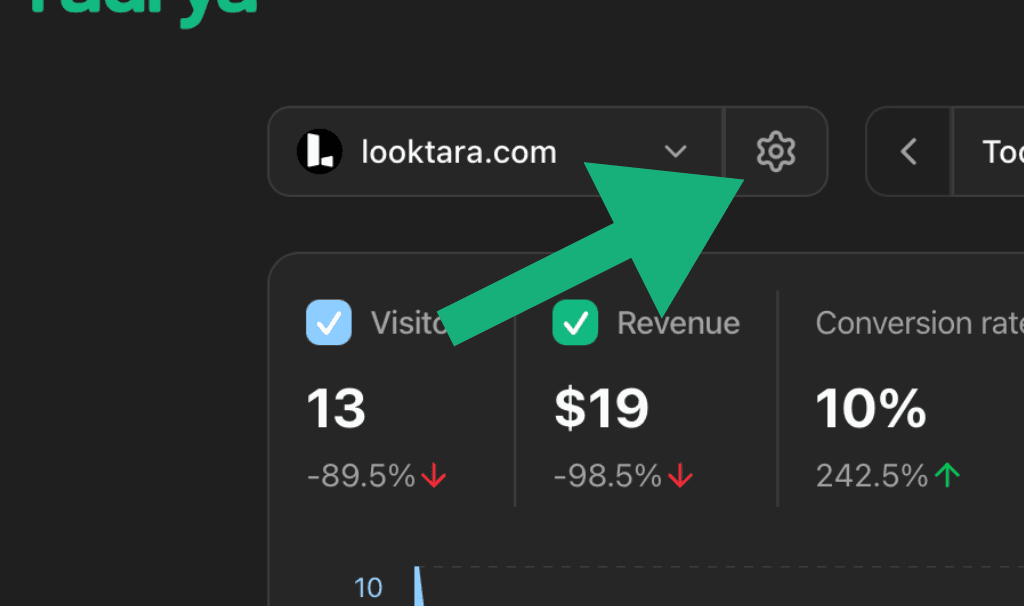
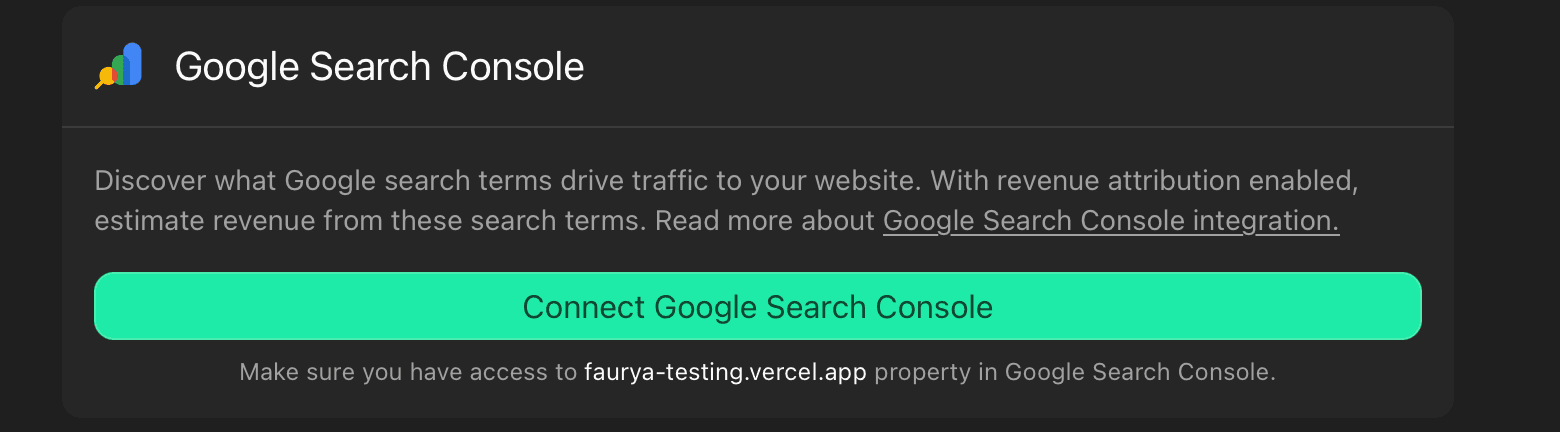
- Navigate to the Integrations tab and choose Google Search Console
- Sign in with your Google account and authorize Faurya to access your Search Console data
Requirements
- Your website must be verified in Google Search Console
- You need owner or full user permissions for the Search Console property
Troubleshooting
Property not found?
- Verify your website is added to Google Search Console
- Ensure the domain matches exactly (with or without www)
- Check that you have the correct permissions
No search data showing?
- Search Console data can take 24-48 hours to appear
- Make sure your website has been indexed by Google
Need help? Email us at team@faurya.com