Cashfree
Connect Cashfree to Faurya with Client ID, Client Secret, and a verified Cashfree webhook for revenue attribution.
Attribute revenue with Cashfree
Use this guide to connect Cashfree Payment Gateway webhooks to Faurya. The setup has two parts:
- Save your Cashfree API credentials in Faurya.
- Create and test the Cashfree webhook endpoint in the Cashfree dashboard.
After Cashfree sends a verified webhook to Faurya, the connection status changes to Webhook verified & Cashfree connected.
Use credentials from the same Cashfree environment where you create the webhook. Do not mix Sandbox credentials with Production webhooks.
What Faurya needs from Cashfree
Faurya uses two Cashfree Payment Gateway credentials:
- Cashfree Client ID
- Cashfree Client Secret / PG Secret Key
The Client Secret is used to verify Cashfree webhook signatures. Faurya does not use a separate Cashfree webhook secret for this integration.
Pass Faurya attribution IDs to Cashfree checkout
Before you send a customer to Cashfree checkout, read the Faurya attribution IDs from cookies and pass them into Cashfree metadata/tags. This lets Faurya connect the final payment webhook back to the visitor and session that started checkout.
Use these cookie values:
faurya_visitor_idfaurya_session_id
Example with a Next.js server route:
import { cookies } from "next/headers";

export async function POST() {
  const cookieStore = await cookies();
  const fauryaVisitorId = cookieStore.get("faurya_visitor_id")?.value;
  const fauryaSessionId = cookieStore.get("faurya_session_id")?.value;

  const response = await fetch("https://sandbox.cashfree.com/pg/orders", {
    method: "POST",
    headers: {
      accept: "application/json",
      "content-type": "application/json",
      "x-api-version": "2022-09-01",
      "x-client-id": process.env.CASHFREE_CLIENT_ID!,
      "x-client-secret": process.env.CASHFREE_CLIENT_SECRET!,
    },
    body: JSON.stringify({
      order_id: `order_${Date.now()}`,
      order_amount: 999,
      order_currency: "INR",
      customer_details: {
        customer_id: "customer_123",
        customer_email: "customer@example.com",
        customer_phone: "9999999999",
      },
      order_meta: {
        return_url: "https://your-site.com/checkout/success",
      },
      order_tags: {
        faurya_visitor_id: fauryaVisitorId,
        faurya_session_id: fauryaSessionId,
      },
    }),
  });

  return Response.json(await response.json());
}
If you create subscriptions or payment links instead of orders, pass the same
faurya_visitor_id and faurya_session_id values in the equivalent Cashfree
metadata/tags field for that API.
Step 1: Save Cashfree credentials in Faurya
Open your Faurya dashboard and go to your site’s Revenue settings. Select Cashfree.
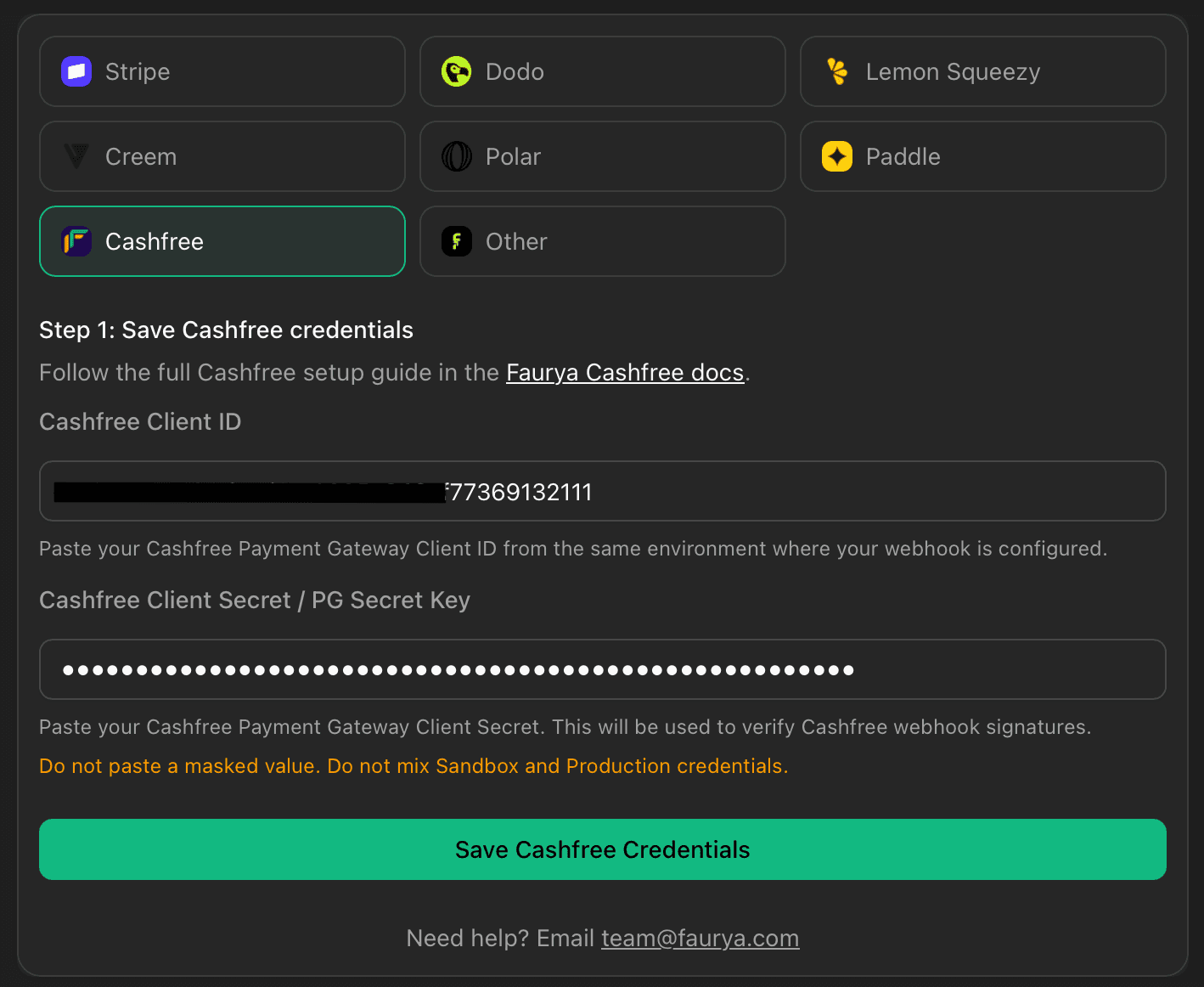
Enter:
Cashfree Client IDCashfree Client Secret / PG Secret Key
Then click Save Cashfree Credentials.
Saving credentials does not mark Cashfree as fully connected yet. Faurya marks Cashfree connected only after it receives and verifies a Cashfree webhook for your site.
Step 2: Get your Cashfree API keys
In Cashfree, open the Payment Gateway API keys page:
Open Cashfree Payment Gateway API Keys
Copy the AppID as your Cashfree Client ID.
Copy the Secret Key as your Cashfree Client Secret / PG Secret Key.
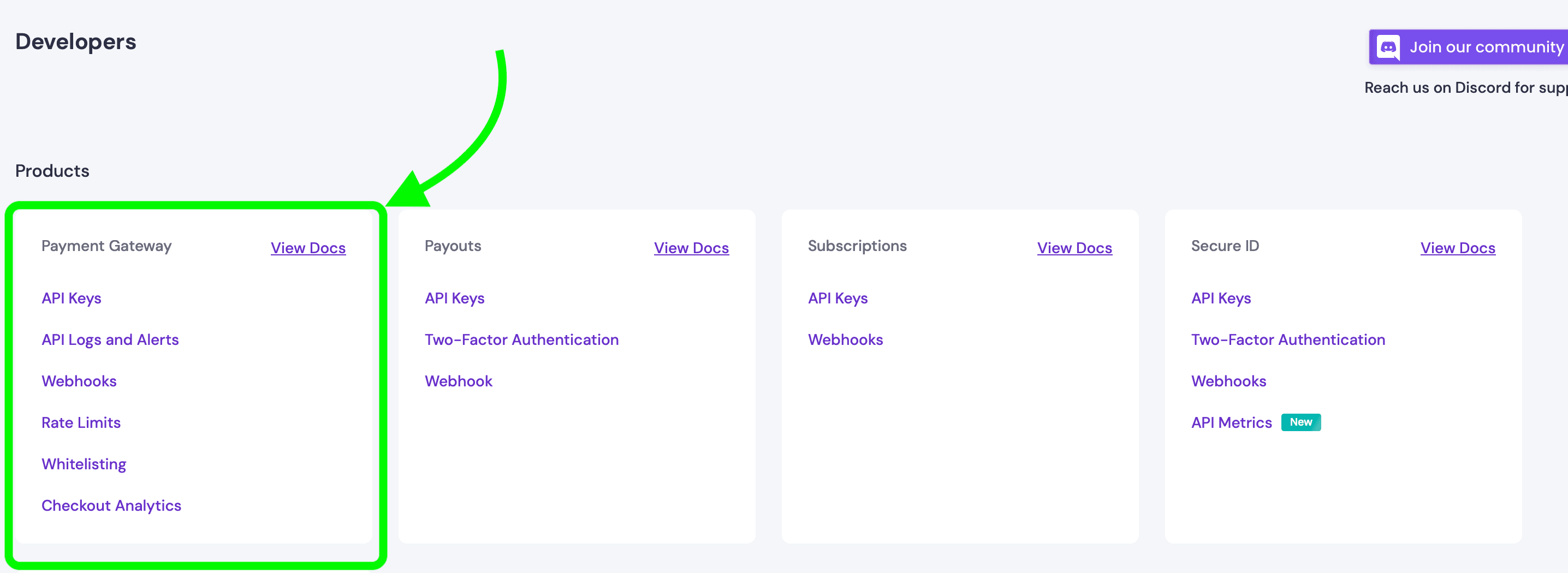
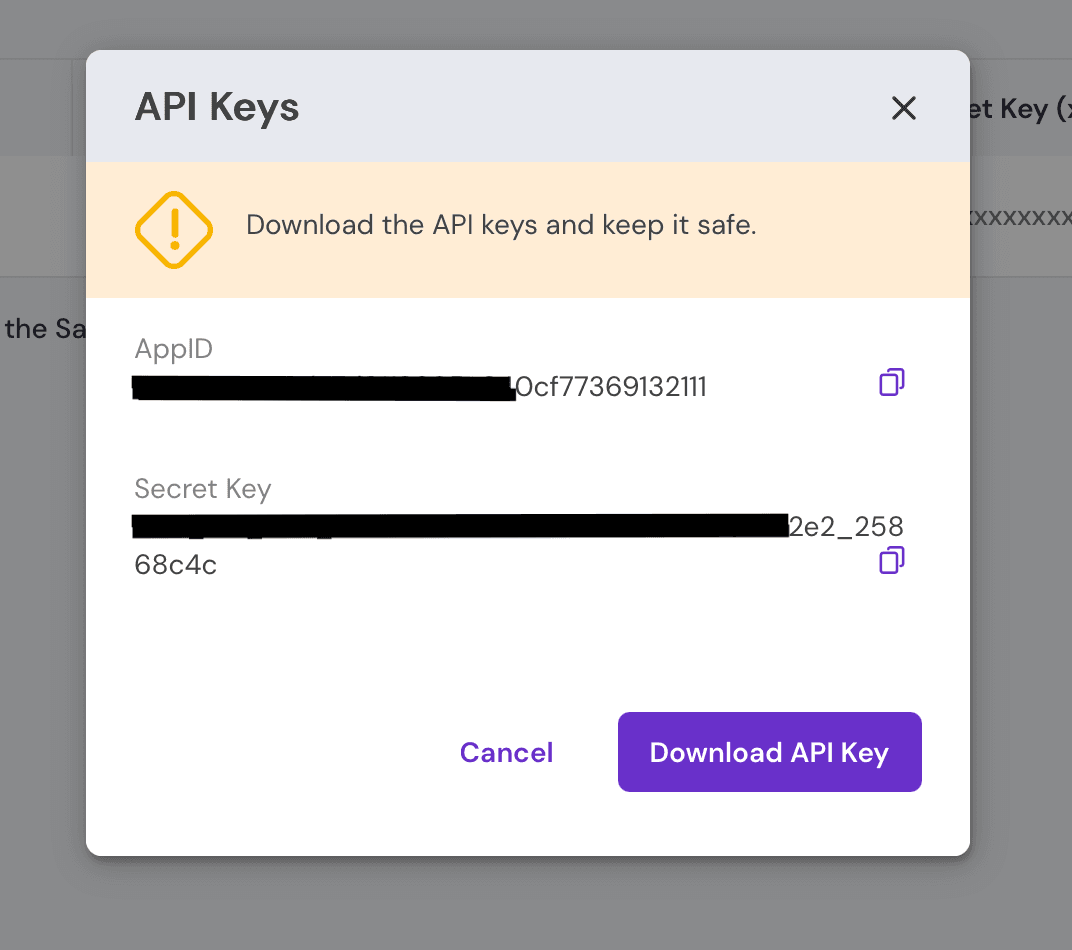
Paste both values into Faurya and save.
Step 3: Copy the Faurya webhook URL
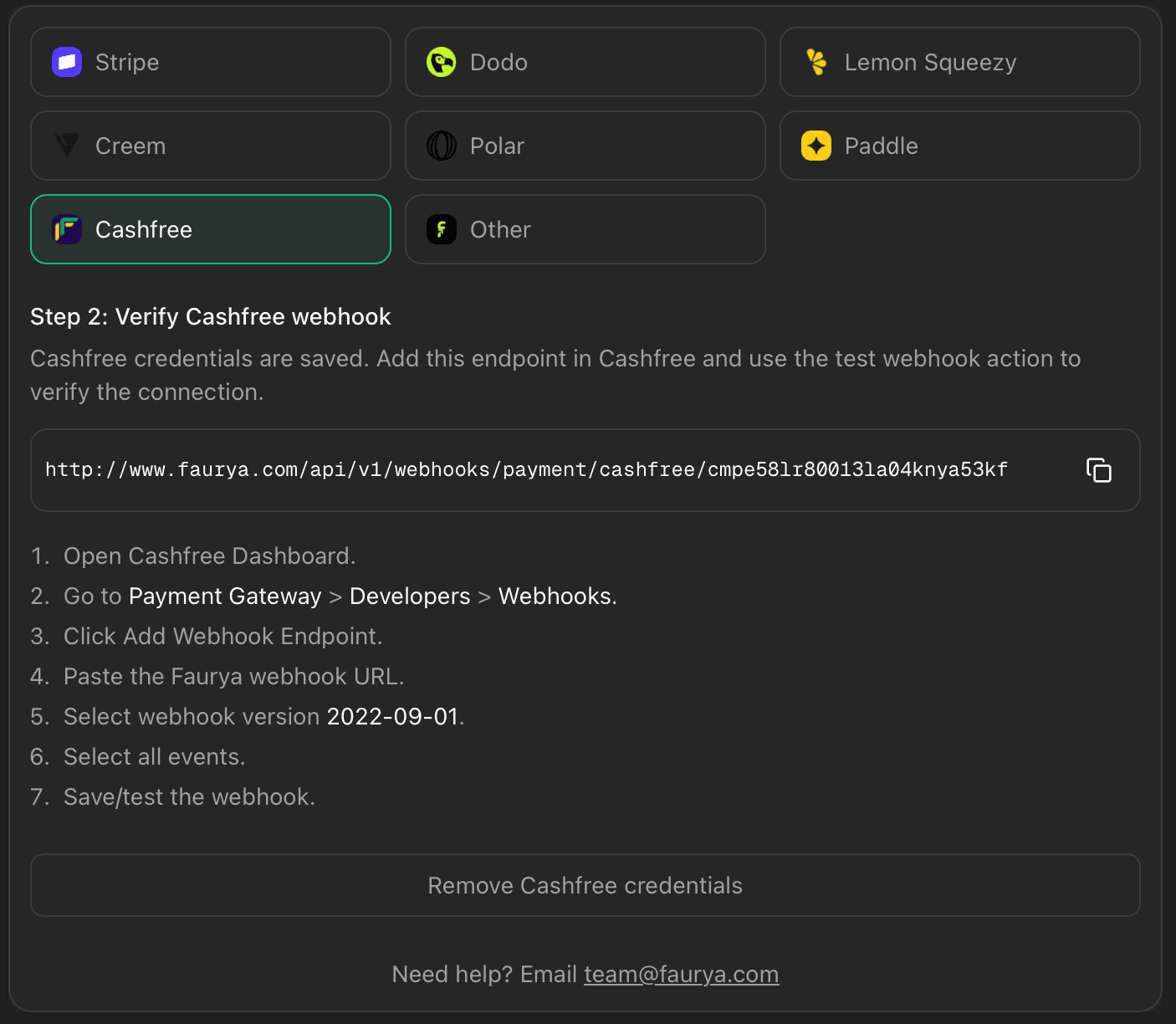
After saving your credentials, Faurya shows Step 2 with your Cashfree webhook URL.
The URL looks like this:
https://www.faurya.com/api/v1/webhooks/payment/cashfree/siteIdCopy the webhook URL from Faurya.
Step 4: Open Cashfree Payment Gateway webhooks
In Cashfree, go to:
- Developers
- Payment Gateway
- Webhooks
- Add Webhook Endpoint
Create the webhook in the Payment Gateway section. Do not create this webhook under Payment Link, Payment Form, Subscription, Payouts, or Secure ID sections.
Step 5: Add the Faurya endpoint
In the Cashfree Add Webhook Endpoint modal:
- Paste the Faurya webhook URL into Endpoint URL.
- Select webhook version
2022-09-01. - Click Test.
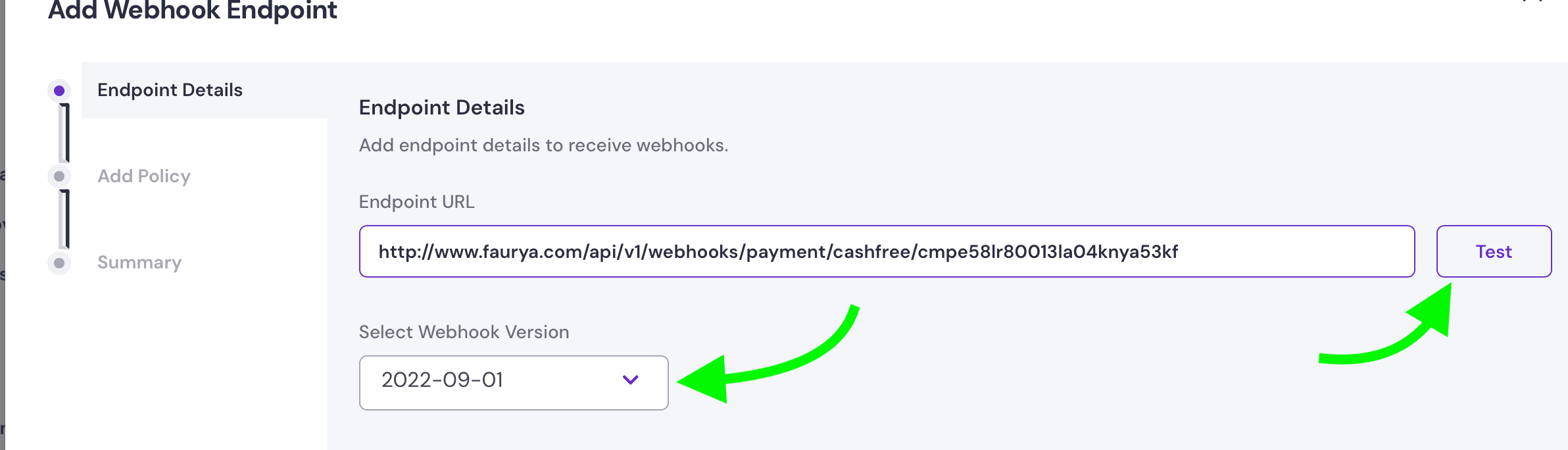
When Cashfree tests the endpoint, Faurya verifies the request using the Client Secret saved in Step 1. If verification succeeds, Faurya turns on Cashfree for that site.
Step 6: Select webhook events
After the endpoint test succeeds, continue to the policy/events step.
Select the events you want Faurya to track. For complete revenue attribution, select payment, refund, subscription, and payment-link events.
Recommended event categories:
- Payment success
- Payment failed
- Payment user dropped
- Refund events
- Subscription payment success
- Subscription payment failed
- Subscription payment cancelled
- Subscription refund status
- Payment link events
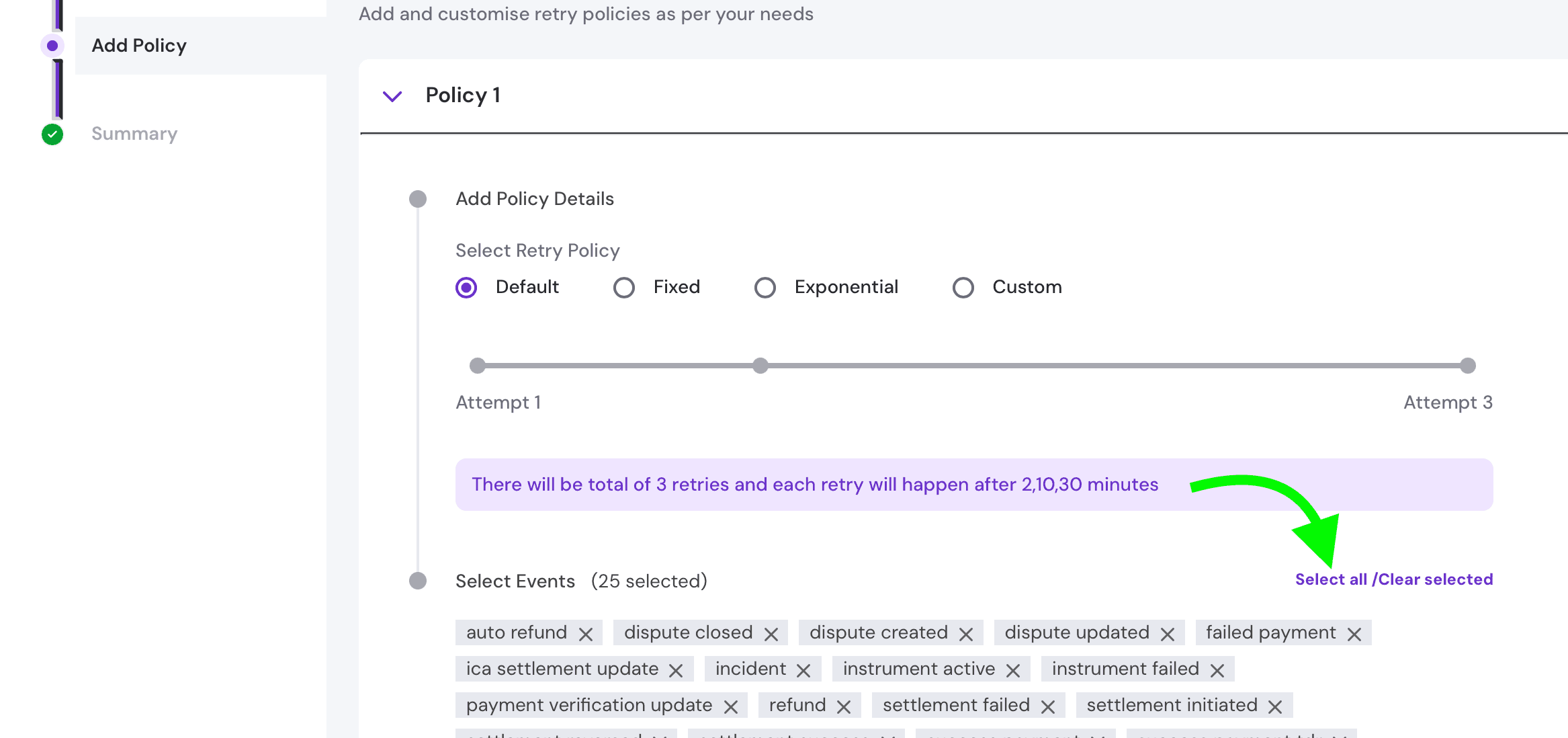
Click Save.
Step 7: Refresh Faurya and confirm connection
Go back to Faurya and refresh the Revenue settings page.
When the webhook has been verified, the Cashfree card shows:
Webhook verified & Cashfree connected.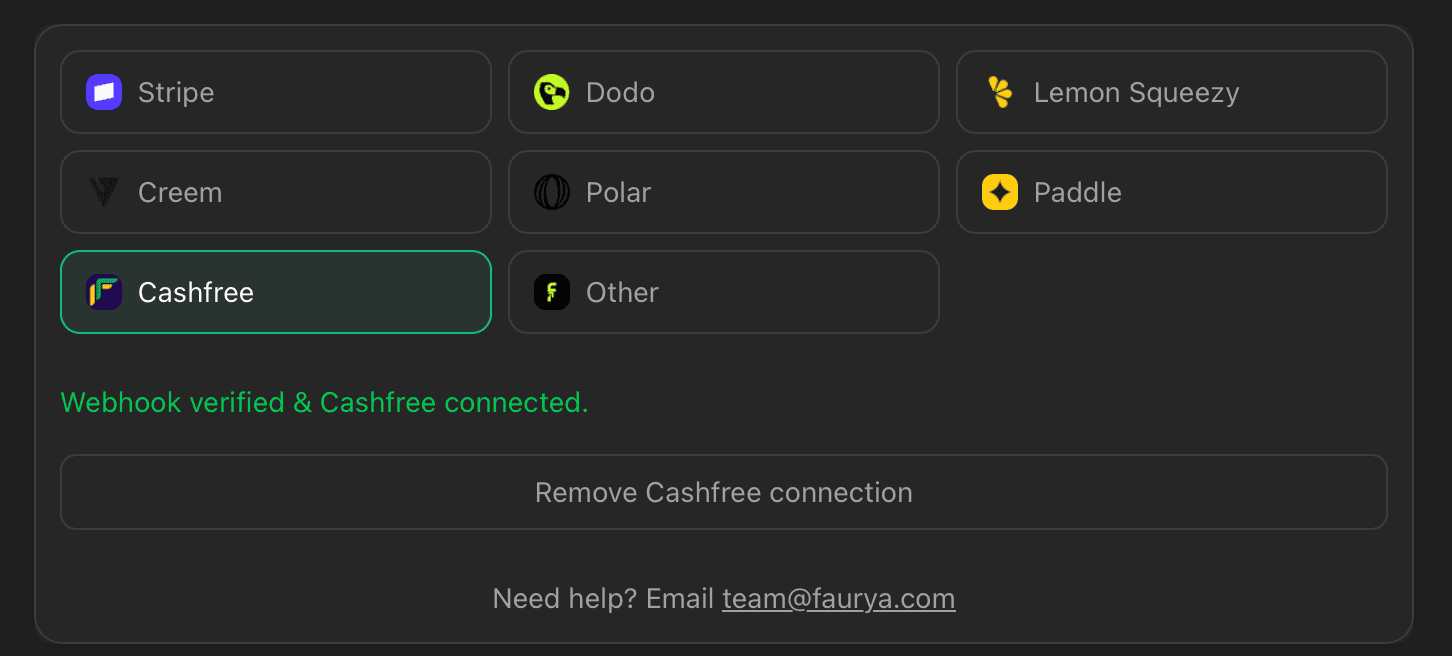
At this point, Cashfree revenue events can be verified and processed by Faurya.
How Cashfree attribution works
When Cashfree sends a webhook to Faurya:
- Faurya reads the raw webhook body.
- Faurya verifies
x-webhook-signatureusing your saved Cashfree Client Secret. - Faurya parses the webhook only after verification succeeds.
- Faurya checks whether the event was already processed.
- Faurya records successful payment revenue and updates refund/failure status when supported.
Unsupported but valid Cashfree events are acknowledged so Cashfree does not keep retrying them.
Troubleshooting
Cashfree remains “webhook not verified” in Faurya
- Confirm the webhook was created under Payment Gateway > Developers > Webhooks.
- Confirm the webhook version is
2022-09-01. - Click Test in Cashfree after saving credentials in Faurya.
- Confirm the webhook URL includes the correct Faurya site ID.
Webhook signature fails
- Confirm the Cashfree Client Secret in Faurya is the actual Secret Key, not a masked value.
- Confirm Sandbox webhooks use Sandbox credentials.
- Confirm Production webhooks use Production credentials.
- Re-save the Cashfree Client ID and Client Secret in Faurya, then test the webhook again.
Revenue is not appearing
- Confirm you selected payment success events in Cashfree.
- Confirm Cashfree shows successful webhook delivery logs.
- Confirm the payment event contains amount and order/payment identifiers.
Duplicate revenue appears
Faurya deduplicates Cashfree webhooks using Cashfree idempotency headers and payment/order identifiers. If you also send revenue manually through the Faurya Payments API, avoid recording the same payment twice.